
Step-by-Step Guide to Connect Nest to Alexa in 2026
Imagine walking into your home and adjusting the temperature, checking camera feeds, or answering the door using just your voice. Smart home technology is transforming daily life, but managing devices from different brands can be challenging.
This guide will show you exactly how to connect nest to alexa in 2026. We will break down every step, from understanding which devices work together to troubleshooting common issues, ensuring you can enjoy seamless voice control.
You will discover how interoperability makes your home more convenient, secure, and future-proof. Even if you are a beginner, this step-by-step guide will make the process easy to follow.
Understanding Compatibility: Which Nest Devices Work with Alexa in 2026?
Choosing the right smart home devices is crucial if you want to connect nest to alexa and enjoy seamless voice control. In 2026, integration between Google Nest and Amazon Alexa is more robust than ever, but not every device is supported. Understanding which Nest models work with Alexa will save you time and frustration during setup.
Supported Nest Devices in 2026
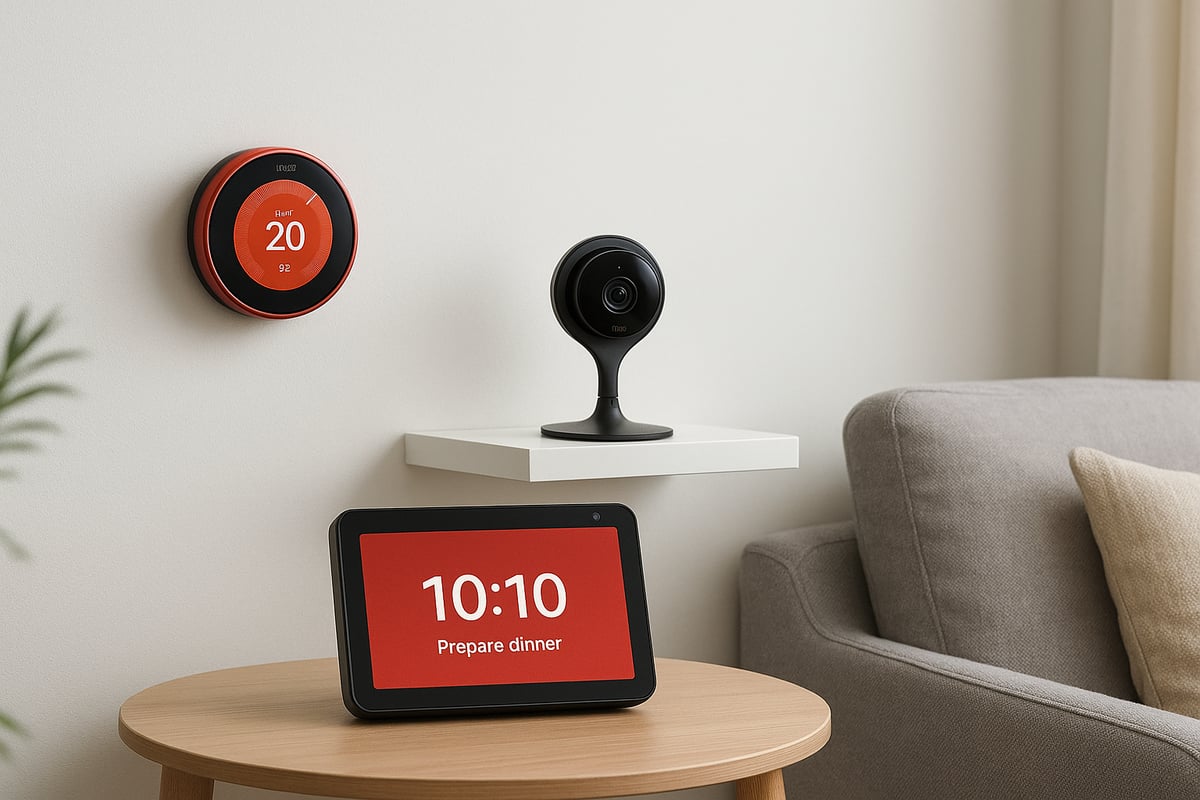
Not all Nest products are created equal when it comes to Alexa compatibility. The following table summarises the main Nest devices you can expect to work with Alexa in 2026:
| Nest Device | Alexa Support | Typical Functionality |
|---|---|---|
| Nest Learning Thermostat | Yes | Temperature control, status queries |
| Nest Thermostat E | Yes | Temperature control |
| Nest Cam (Indoor/Outdoor) | Yes | Live video feed, motion alerts |
| Nest Cam IQ | Yes | Advanced video features |
| Nest Doorbell (wired/battery) | Yes | Video feed, doorbell notifications |
| Nest Hub Max | Yes* | Limited control via routines |
*Note: Some features of Nest Hub Max may be limited. Always check the latest compatibility updates from Google and Amazon.
To connect nest to alexa successfully, make sure your devices are listed above and running the latest firmware. Using older or unsupported models can result in limited or no Alexa integration.
Essential Alexa Devices for Full Integration
For the best experience, certain Alexa devices are recommended. These enable you to fully control and monitor your Nest products:
- Echo Show: Required for viewing Nest Cam or Doorbell video feeds.
- Echo Dot/Echo: Ideal for issuing voice commands to your thermostat or cameras.
- Fire TV: Allows streaming Nest camera footage on your television.
If you want to connect nest to alexa and see live video, an Echo Show or compatible Fire TV is essential. Audio-only devices like Echo Dot will handle thermostat and basic camera commands but not video.
Notable Exclusions and Discontinued Models
It is important to know which Nest devices are not supported. As of 2026, the Nest Secure Alarm System and some older, discontinued models do not work with Alexa. Google has phased out direct support for these products in the Alexa ecosystem.
If you attempt to connect nest to alexa using one of these unsupported devices, you may encounter errors or find that key features are missing. Always check official compatibility lists before purchasing new equipment.
Staying Updated and Maximising Interoperability
To maintain compatibility, regularly update your Nest and Alexa device firmware through their respective apps. This ensures you can connect nest to alexa without issues and benefit from the latest features.
A recent industry report found that over 70% of UK smart home users prefer devices that work across multiple platforms. This multi-platform approach not only boosts convenience but also enhances household security. For example, you might ask, “Alexa, set the hallway thermostat to 20 degrees,” or, “Alexa, show the front door camera,” and get instant results.
Interoperability between Nest and Alexa means you are not locked into a single brand, giving you more freedom as technology evolves. If you want a step-by-step overview of supported devices and setup, the Nest and Alexa Integration Guide provides useful details.
Understanding which devices are compatible is the first step to building a connected smart home that works the way you want.
Preparing Your Accounts: Google and Amazon Requirements
Setting up your accounts correctly is the foundation for a smooth experience when you connect nest to alexa. Ensuring your Google and Amazon accounts are ready will prevent many common issues during the linking process. Let us walk you through each step, so you are fully prepared.
Migrating Your Nest Account to Google
If you created your Nest account before 2019, migrating to a Google account is essential to connect nest to alexa. Google now manages all Nest integrations, and migration ensures your devices remain supported.
Follow these steps to migrate your Nest account:
- Open the Nest app and log in.
- Look for the prompt to migrate to a Google account.
- Follow the on-screen instructions to link your Nest and Google accounts.
- Confirm your email and accept the new terms.
- Re-invite any household members who need access.
Migration brings some changes. After you connect nest to alexa through your Google account, you may notice the loss of Works with Nest integrations and will need to reconfigure some settings. Household members will require new invitations for continued device access.
For a full walkthrough and troubleshooting, refer to this detailed process for migrating Nest accounts to Google. After migration, app controls and security are streamlined, but you might need to re-link some services.
Setting Up Amazon and Alexa Accounts
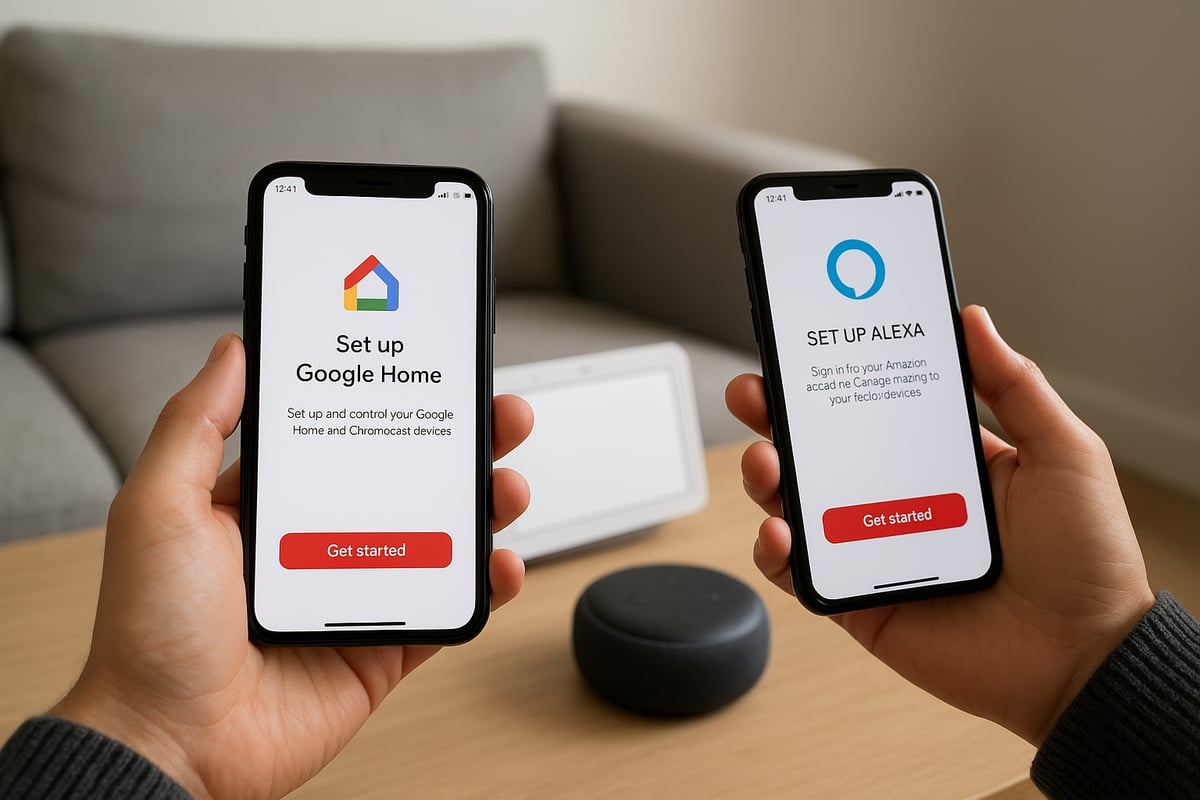
Next, ensure you have an active Amazon account and an Alexa-enabled device, such as an Echo Dot or Echo Show. Download the Alexa app from the App Store or Google Play and sign in using your Amazon credentials.
Check that your Alexa device is registered to the correct Amazon account. For UK users, verify that your account region and device location settings match. If regions do not align, attempts to connect nest to alexa may fail or features could be unavailable.
Common issues include mismatched regions or incomplete device registration. Always double-check your account and device settings before proceeding.
Installing and Updating Google Home and Alexa Apps
To connect nest to alexa seamlessly, download or update both the Google Home and Alexa apps to the latest versions. This ensures compatibility with the newest features and security updates.
Enable all necessary permissions, including location and notifications, for both apps. Updated apps reduce bugs and support improved device linking. Taking these steps helps avoid setup delays and ensures your devices work together smoothly.
Step-by-Step Process: Connecting Nest to Alexa in 2026
Ready to streamline your smart home experience? This section will walk you through every step needed to connect nest to alexa in 2026. Whether you want to control your heating, check your security cameras, or answer the door with your voice, following these instructions will ensure a smooth setup. Let us begin the process of integrating your Nest devices with Alexa for seamless control.
Enabling the Google Nest Skill on Alexa
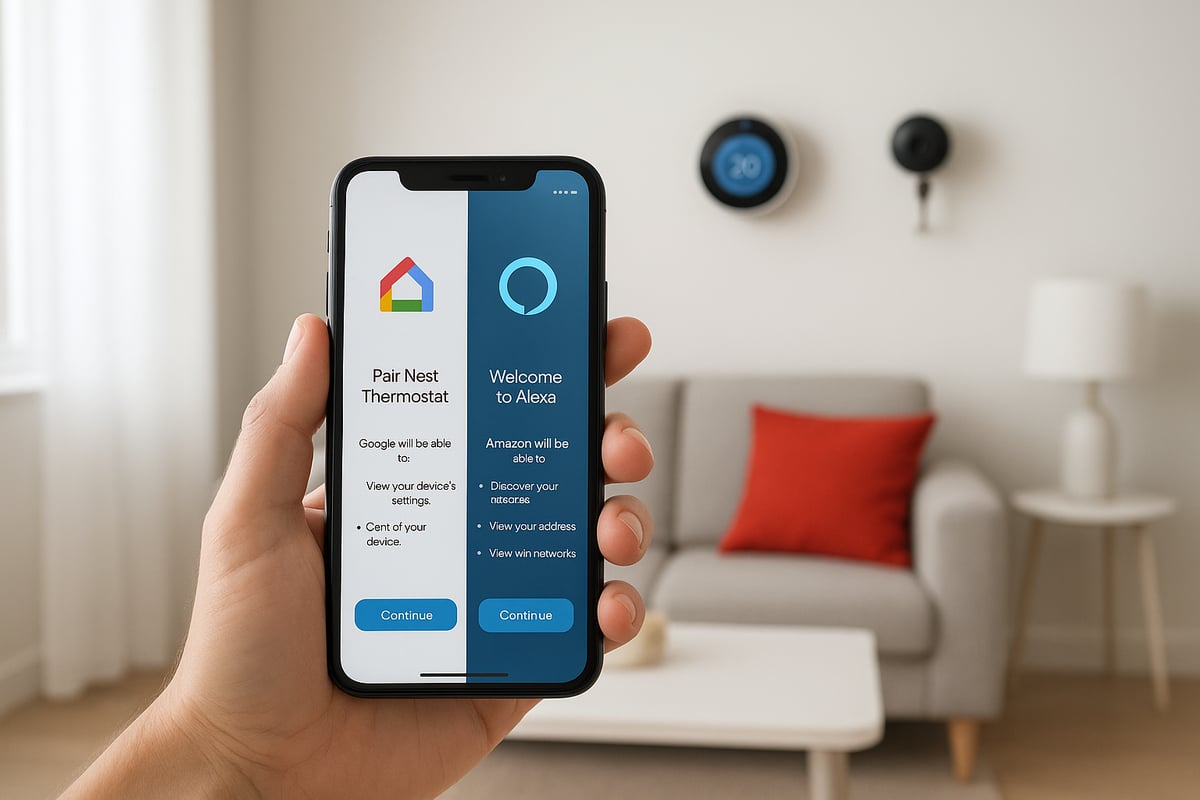
The first step to connect nest to alexa is enabling the official Google Nest Skill within your Alexa app. This skill acts as the bridge between your Nest devices and Alexa-enabled speakers, displays, or hubs.
Open the Alexa app on your phone or tablet. Tap on the "More" tab in the lower right, then select "Skills & Games." Use the search bar to find "Google Nest" and choose the official skill from Google.
Tap "Enable to Use." You will be prompted to sign in with your Google account—the same one linked to your Nest devices. Follow the on-screen instructions to authorise access and grant permissions for each Nest device you want Alexa to control, such as thermostats, cameras, or doorbells.
You can review and modify which devices Alexa can access during setup. For a detailed visual walkthrough, the Google Nest Skill for Alexa provides the latest guidance and screenshots.
Once the connection is established, Alexa will confirm that your Nest devices are now discoverable. Always ensure you use the official skill, as third-party options may have limited features or security risks.
Adding Nest Devices to Google Home
Before you connect nest to alexa, ensure all your Nest devices are added and properly named in the Google Home app. This step is crucial, as Alexa will use these names for voice commands and routines.
Open the Google Home app and tap the "+" icon to add a new device. Select "Set up device," then choose "Google Nest" and follow the prompts to add each thermostat, camera, or doorbell.
For better voice recognition, use simple and unique names like "Hallway Thermostat," "Front Door Camera," or "Living Room Cam." Avoid duplicate names or ambiguous labels, as this can cause confusion when issuing Alexa commands.
Check that each device appears in your Google Home dashboard. If a device does not show up, confirm it is powered on, connected to Wi-Fi, and running the latest firmware.
A well-organised Google Home setup will make it much easier to connect nest to alexa and use voice commands effectively.
Linking Alexa and Google Home via Partner Connections
With your devices ready, the next step to connect nest to alexa involves linking the two platforms through Partner Connections. This feature allows you to share selected Nest devices with Alexa while maintaining control over privacy and permissions.
Open the Google Home app and go to your account settings. Find "Partner Connections" and select "Amazon Alexa" from the list of available partners.
You will be guided through a step-by-step process:
- Tap "Enable Device Sharing."
- Choose which Nest devices you want to make available to Alexa. For privacy, you might only share cameras in communal areas or thermostats in certain rooms.
- Confirm the permissions, then authorise the connection.
After confirming, Google Home will sync your chosen devices with your Alexa account. This process might take a few minutes, depending on the number of devices.
Carefully review which devices you share. If you have security cameras in private spaces, you can opt not to share them with Alexa. This selective sharing is a key benefit when you connect nest to alexa, as it helps protect your privacy while still enjoying voice control.
Discovering Devices in the Alexa App
Now that device sharing is enabled, it is time to complete the process to connect nest to alexa by discovering your Nest products in the Alexa app.
Open the Alexa app, tap "Devices," and select the "+" icon in the top right. Choose "Add Device," then select "Other" and tap "Discover Devices." Alexa will begin scanning your network and account for any newly linked Nest devices.
If everything is set up correctly, you should see your Nest thermostats, cameras, and doorbells appear under the relevant categories. If a device does not show up, double-check that it is online, that permissions are granted, and that both accounts are linked with the correct regions.
You can also use the voice command, "Alexa, discover devices," to trigger the scan. This is often faster and is a simple way to connect nest to alexa without navigating menus.
If issues persist, try restarting both your Alexa device and the Nest product, then repeat the discovery process.
Testing and Verifying Connection
After you connect nest to alexa and discover your devices, it is important to test the integration to ensure everything is working as expected.
In the Alexa app, go to "Devices" and confirm that your Nest products are listed. Tap on each device to check its status and available controls.
Try issuing voice commands such as, "Alexa, set the hallway thermostat to 21 degrees," or "Alexa, show the front door camera." If you have an Echo Show or Fire TV, the camera feed should appear on the screen.
Successful responses indicate that you have managed to connect nest to alexa correctly. For any errors, review the setup steps or consult the troubleshooting section.
Common Pitfalls and Troubleshooting
When you connect nest to alexa, certain issues may arise. Common problems include account linking errors, devices not appearing, or regional mismatches.
Ensure that all devices are on the same Wi-Fi network and that your Google and Amazon accounts are set to compatible regions. Double-check that permissions are granted for each device in both the Google Home and Alexa apps.
If a Nest camera feed does not display on your Echo Show, verify that the camera is online and that video permissions are enabled. Restarting both devices can resolve most temporary glitches.
Should persistent issues occur, unlink and re-link accounts or contact official support channels. Keeping your apps and device firmware updated will help minimise future problems when you connect nest to alexa.
Using Alexa to Control Nest Devices: Voice Commands, Routines, and Scenarios
Connecting your smart home devices opens up a world of convenience. Once you connect nest to alexa, you unlock powerful voice control that makes your daily routines easier, more efficient, and secure. From adjusting your heating to checking your front door, Alexa transforms the way you interact with your Nest devices.
Voice Commands for Nest Thermostats
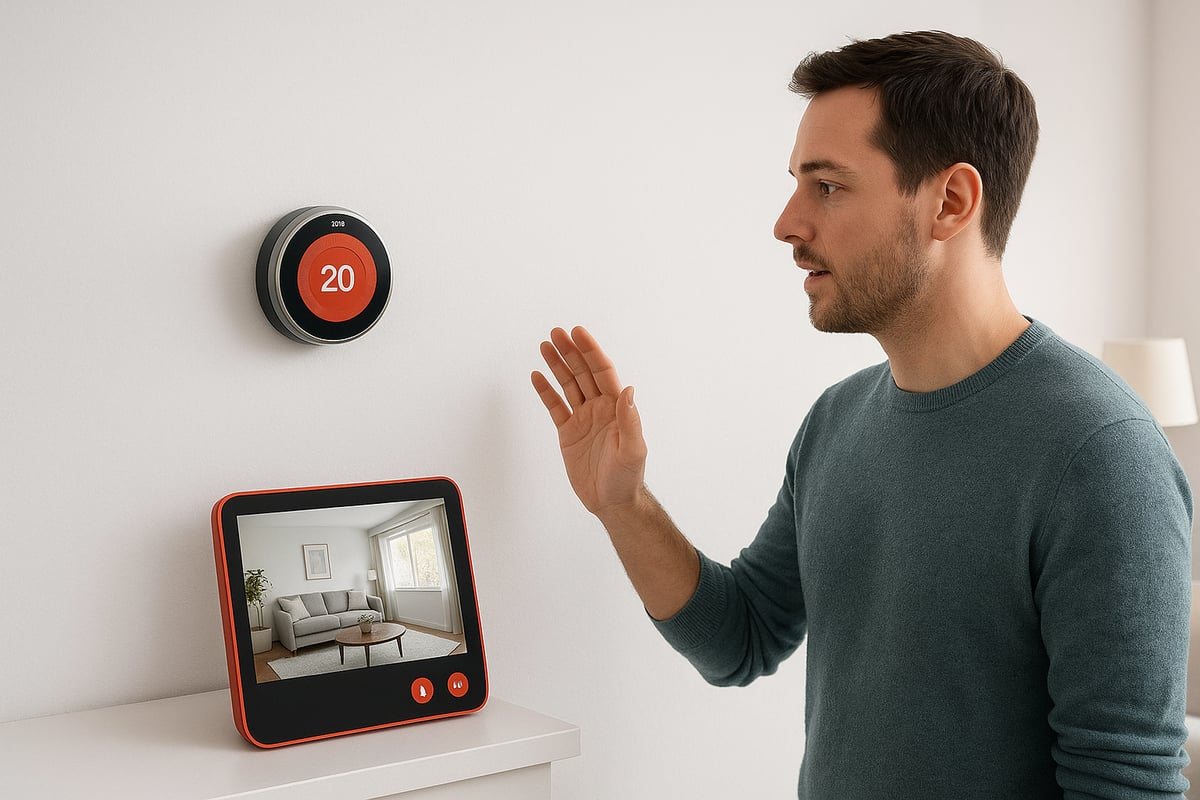
After you connect nest to alexa, controlling your heating system is as simple as speaking. Alexa lets you adjust the temperature, check current room conditions, or switch between heating and cooling modes using intuitive voice commands.
Popular thermostat commands include:
- “Alexa, set the living room thermostat to 20 degrees.”
- “Alexa, what’s the temperature in the bedroom?”
- “Alexa, turn off the hallway thermostat.”
Customising device names in the Google Home app can make commands even smoother. Use clear names like “Bedroom Thermostat” for quick access.
Voice control goes beyond convenience. By using Alexa to manage your Nest thermostat, you can fine-tune your heating schedule and reduce energy waste. This integration helps you maintain comfort and save on energy bills. For more insight into the benefits, see our guide on the Benefits of installing a smart thermostat.
With the ability to connect nest to alexa, you gain both control and efficiency.
Voice Commands for Nest Cameras and Doorbells
Once you connect nest to alexa, you can view live camera feeds, respond to doorbell alerts, and receive security notifications—all with your voice. Alexa’s integration with Nest cameras and doorbells makes monitoring your home effortless.
Common camera and doorbell commands:
- “Alexa, show the front door camera.”
- “Alexa, answer the doorbell.”
- “Alexa, show the back garden camera.”
If you have an Echo Show or Fire TV, Alexa can display live video from your Nest cameras. You can also set up announcements on Alexa speakers to receive alerts when someone rings your doorbell or motion is detected.
Creating clear device names like “Driveway Camera” or “Kitchen Camera” ensures Alexa understands your requests every time. Integrating security devices through the connect nest to alexa process adds a vital layer of peace of mind.
Using Alexa routines, you can even automate responses to motion or doorbell events, further enhancing your home’s security and responsiveness.
Creating Alexa Routines with Nest Devices
When you connect nest to alexa, you unlock the ability to build custom routines that automate your smart home. Routines let you group actions together, saving time and ensuring your home adapts to your lifestyle.
Example Alexa routines with Nest devices:
- “Goodnight” routine: Lowers the thermostat, turns off lights, and arms cameras.
- “Leaving home” routine: Turns off heating and enables all Nest cameras.
- “Wake up” routine: Raises temperature and shows kitchen camera on Echo Show.
Setting up routines is straightforward in the Alexa app. Choose a trigger (like a time or voice command), add the desired Nest actions, and save. Personalising your routines maximises the benefits of your integrated devices.
Through the connect nest to alexa feature, routines become a powerful tool for daily automation, improving comfort, security, and efficiency. Experiment with different triggers and actions to match your unique needs.
Multi-Device Scenarios and Smart Home Integration
The real power comes when you connect nest to alexa and combine it with other smart home devices. Alexa routines can include not only Nest products but also lights, plugs, and sensors from a variety of brands.
Sample multi-device scenarios:
- “Leaving Home” routine: Turns off Nest thermostat, switches off all lights, and arms security cameras.
- “Arriving Home” routine: Turns on hallway lights and adjusts the Nest thermostat to a comfortable setting.
- “Movie Night” routine: Dims lights, sets the living room temperature, and pauses security notifications.
This level of integration makes your home truly smart. By using connect nest to alexa, you streamline daily tasks and enhance your home’s functionality. Interoperability between devices means you can create tailored scenarios that fit your lifestyle, offering unmatched convenience and control.
Whether you want to save energy, boost security, or simply enjoy a seamless living experience, integrating your Nest devices with Alexa routines delivers tangible results.
Advanced Tips, Privacy, and Security Considerations
Keeping your smart home secure and efficient is vital as you connect nest to alexa. Advanced settings and good habits can protect your privacy, boost reliability, and ensure your system keeps up with future tech.
Managing Device Permissions and Household Members
When you connect nest to alexa, managing who can access your devices is essential. Both Google Home and Alexa allow you to add or remove household members, ensuring only trusted users have control.
To add a member in Google Home, open the app, tap 'Home settings', then 'Household', and invite by email. In the Alexa app, navigate to 'Settings', select 'Household Profile', and add or remove users as needed.
Set device-specific permissions for cameras or thermostats. You might choose to share camera feeds only with adults, while all family members can adjust the thermostat.
- Regularly review household members
- Limit camera access to trusted users
- Remove users who no longer need access
By controlling device permissions, you keep your home safer as you connect nest to alexa.
Privacy Settings and Data Sharing
Understanding privacy settings is crucial when you connect nest to alexa. Both platforms share some data for functionality, but you can customise what is exchanged.
In Google Home, go to 'Settings', then 'Privacy', to manage what information is shared with Amazon. In the Alexa app, visit 'Settings' and 'Alexa Privacy' to review voice recordings and connected device data.
Balance convenience with privacy by disabling features you do not use. For example, limit which devices Alexa can access or restrict notifications for certain cameras.
Insights:
- Review privacy settings after new updates
- Delete old voice recordings regularly
- Only enable necessary data sharing
Taking these steps helps safeguard your information while you connect nest to alexa.
Network and Connectivity Optimisation
A robust network is essential when you connect nest to alexa, as smart devices rely on strong Wi-Fi for seamless operation. Poor connectivity can cause delays or dropped commands.
Position your router centrally and away from thick walls to maximise coverage. Consider using mesh Wi-Fi systems or extenders for larger homes to ensure every device stays connected.
Tips for stable connectivity:
- Use 2.4GHz networks for wider range
- Regularly restart your router
- Keep devices within 10 metres of access points
If you experience issues, run a speed test and check for interference from other electronics. Reliable connectivity ensures your smart home responds instantly when you connect nest to alexa.
Keeping Devices Updated and Secure
Security is a top priority when you connect nest to alexa. Regularly update the firmware on all Nest and Alexa devices to patch vulnerabilities and access the latest features.
Enable automatic updates in device settings where possible. Use strong, unique passwords for your Google and Amazon accounts, and enable two-factor authentication for extra protection.
Update checklist:
| Task | How Often |
|---|---|
| Check for firmware | Monthly |
| Change passwords | Every 6 months |
| Review app updates | Weekly |
By staying vigilant with updates and security practices, you greatly reduce risks as you connect nest to alexa.
Future-Proofing Your Smart Home Setup
As smart home technology evolves, it is wise to future-proof your setup when you connect nest to alexa. Monitor compatibility updates for new devices and platforms, such as the Matter protocol, which promotes wider interoperability.
Stay informed about upcoming features by subscribing to official Google and Amazon newsletters. Review device compatibility lists annually to ensure your setup remains supported.
If you want more detail on what your smart thermostat can do in a connected system, explore the types of features on smart thermostats to understand future possibilities.
By planning ahead and staying informed, you can enjoy a secure, adaptable smart home as you continue to connect nest to alexa.
Troubleshooting: Solutions to Common Problems When Connecting Nest to Alexa
Running into issues as you try to connect nest to alexa is common, even for seasoned smart home users. Many problems are easy to solve with a systematic approach. Let us walk you through the most frequent challenges and how to resolve them quickly.
Common Issues and Quick Solutions
The table below summarises typical obstacles when you connect nest to alexa, along with recommended actions:
| Problem | Likely Cause | Solution |
|---|---|---|
| Device not appearing in Alexa app | Discovery failure, network error | Check Wi-Fi, use "Discover Devices" in Alexa |
| Account linking error | Mismatched accounts, permissions | Re-link, verify account regions and passwords |
| Camera feed not showing on Echo Show | Permissions, outdated firmware | Update apps, check sharing settings |
| Thermostat not responding to commands | Naming conflict, app sync issue | Rename device, re-sync apps |
| Regional restrictions or unsupported model | Device not available in your area | Check compatibility lists, update firmware |
Step-by-Step Troubleshooting Process
1. Device not appearing in Alexa app
- Ensure your Nest device is added and named in Google Home.
- Both the Nest and Alexa devices must be on the same Wi-Fi network.
- In the Alexa app, select Devices, then tap “+” and choose “Discover Devices.”
- If the issue persists, restart your router and try again.
2. Account linking errors
- Double-check Google and Amazon account details. Both must use the same region (UK for most users).
- Remove the Google Nest skill from Alexa, then re-enable and re-link your account.
- Make sure you have granted all necessary permissions during setup.
3. Network or connectivity issues
- Weak Wi-Fi can cause devices to drop offline.
- Place your router centrally or use mesh Wi-Fi for better coverage.
- Ensure no firewall or parental control settings are blocking device communication.
4. Regional restrictions or unsupported devices
- Some Nest products, like the Nest Secure Alarm System, are not supported by Alexa.
- Always check compatibility lists for 2026 before trying to connect nest to alexa.
- Update device firmware and mobile apps to the latest versions.
5. Voice command recognition issues
- Use unique names for each Nest device to avoid confusion.
- Retrain Alexa’s voice recognition if it struggles with certain commands.
- For thermostat-specific errors, review the common mistakes with smart thermostats to avoid setup pitfalls.
Example: Fixing Camera Feed on Echo Show
If your Nest camera feed does not appear on your Echo Show after you connect nest to alexa, follow these steps:
- Confirm camera is listed in Google Home and shared with Alexa via Partner Connections.
- In Alexa, say “Alexa, show [Camera Name].” If it fails, check camera permissions.
- Update both Google Home and Alexa apps to the newest versions.
- Restart the Echo Show and camera.
- If still unresolved, remove and re-add the camera in Google Home, then re-link to Alexa.
When to Reset or Contact Support
If none of these steps resolve your issue, consider resetting your devices to factory settings and setting them up anew. Persistent problems may require support from Google or Amazon. Refer to official support documentation for device-specific guidance.
By following these troubleshooting steps, most users can connect nest to alexa without ongoing frustration, ensuring a seamless smart home experience.
Frequently Asked Questions About Nest and Alexa Integration
Integrating smart devices at home often leads to questions. Here, we answer the most common queries about how to connect nest to alexa, covering compatibility, security, routines, and troubleshooting for a seamless experience.
Can I use all Nest features via Alexa, or are some restricted?
Not every feature is available when you connect nest to alexa. While you can control thermostats, view camera feeds, and answer doorbells, some advanced settings remain exclusive to the Google Home app.
For example, adjusting detailed thermostat schedules or configuring advanced camera activity zones must be done in the Google ecosystem. However, core controls like changing temperature or viewing camera streams work reliably with Alexa.
For a deeper look at supported camera features, see this Connecting Nest Cameras to Alexa guide.
What Alexa devices work best with Nest cameras and doorbells?
Any Alexa-enabled speaker or display can connect nest to alexa, but some devices offer a richer experience. The Echo Show range (5, 8, 10, 15) and Fire TV devices allow you to see live video feeds from Nest cameras or doorbells.
If you use an Echo Dot or Echo Flex, you can still receive audio alerts and control thermostats by voice, but video content requires a screen. For most users, combining an Echo Show for visuals and an Echo Dot for voice commands offers the best balance.
How secure is the integration between Google and Amazon platforms?
Security is a top concern when you connect nest to alexa. Both Google and Amazon use robust encryption for account linking and data transmission.
You must authorise every connection, and you can review or revoke permissions at any time in the Google Home or Alexa app. Always use strong, unique passwords and enable two-factor authentication on both accounts for added protection.
Will connecting Nest to Alexa affect my existing Google Home routines?
When you connect nest to alexa, your Google Home routines remain unchanged. The devices can be controlled from both platforms, but automations created in Google Home do not automatically transfer to Alexa.
If you want similar routines in Alexa, set them up separately in the Alexa app. This way, you can enjoy parallel automations across both ecosystems without interference.
What should I do if I change my Wi-Fi network or move house?
If you move or update your Wi-Fi, you will need to reconnect each Nest and Alexa device to the new network. Open the Google Home and Alexa apps, follow the device setup instructions, and re-link accounts if prompted.
It is also wise to review your device names and locations for accuracy after moving, ensuring smooth operation when you connect nest to alexa in your new environment.
Are there any costs or subscriptions required for integration?
There is no charge to connect nest to alexa or to use basic voice control and video streaming. However, some Nest features, like extended video history or smart alerts, require a Nest Aware subscription.
Alexa routines and basic integrations are free. For new users, our Beginner's guide to smart heating controls explains what to expect when starting with smart heating and voice control.
Real-world scenarios and latest updates
Many UK users have successfully adopted the connect nest to alexa workflow for convenience and security. For instance, one family uses Alexa to lower heating before bedtime and check the front door camera on their Echo Show.
As of 2026, Google and Amazon continue to expand interoperability. Watch for updates to supported devices and features, especially as new standards like Matter improve smart home integration.
Now that you know exactly how to connect your Nest devices to Alexa and enjoy seamless voice control throughout your home, why not take the next step in making your living space even more comfortable and efficient? Whether you need expert advice on integrating smart heating solutions or want to ensure your system is working at its best, we’re here to help. At Castle Heating Kent, our experienced, Gas Safe registered team is dedicated to keeping homes in your area warm, dry and flowing all year round.
Keeping Homes in and around kent Warm, Dry & Flowing Book with castle heating kent

